Knowledge Base Article
Argenta Chatter: Complete Guide
Chatter is real-time team messaging built into Argenta. Channels, direct messages, reactions, threads, files, status, and AVA, without leaving the platform or paying for a separate chat tool.
Open Chatter from the left navigation. The sidebar holds your channels and people, and the main area shows the conversation you are in.
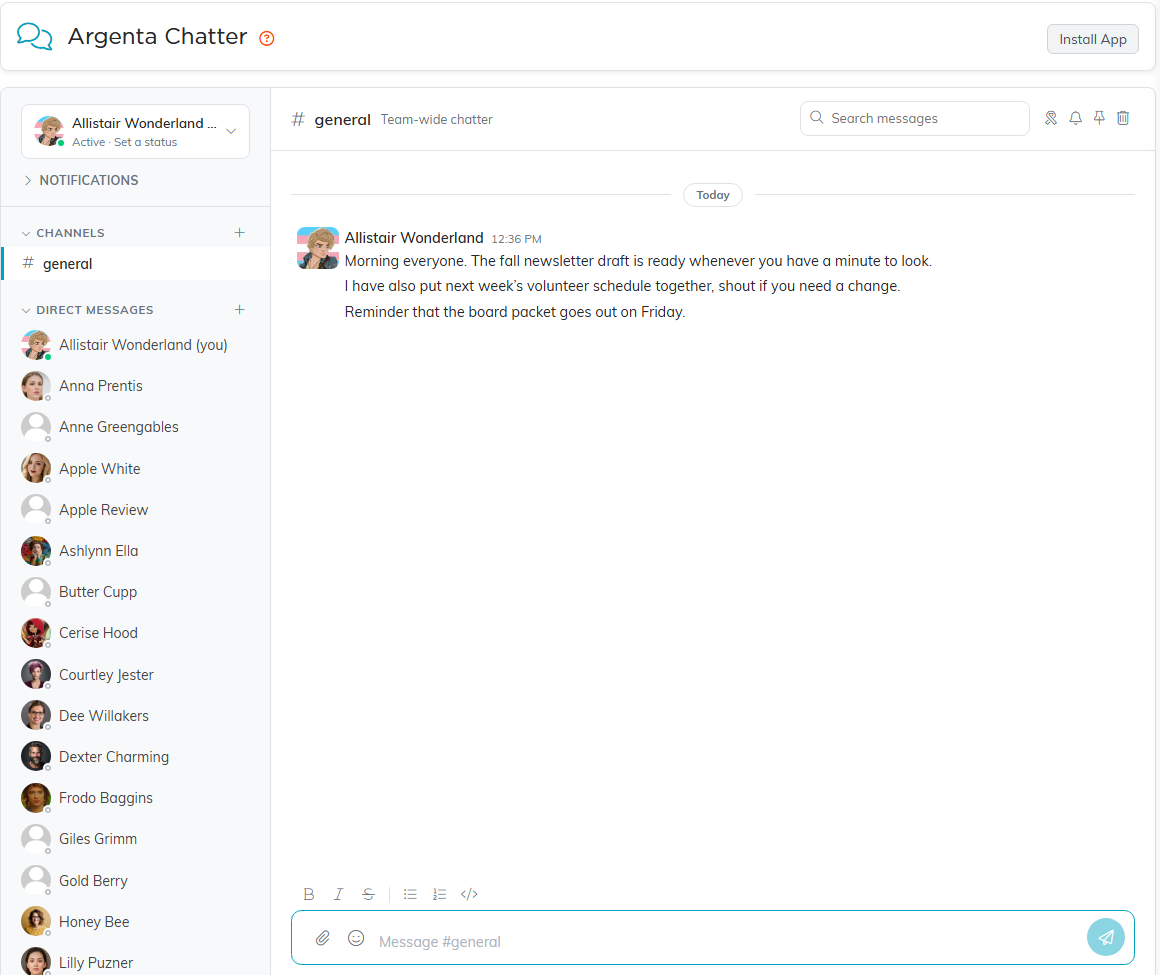
Chatter, with your channels and people on the left and the conversation on the right.
Channels
- Create one: click the plus sign next to Channels and give it a name, plus an optional description.
- Public or private: a hashtag icon means public, visible to everyone on the team. A lock icon means private, visible only to invited members.
- General: every team starts with a team-wide general channel.
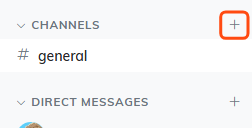
The plus sign next to Channels is how you create one.
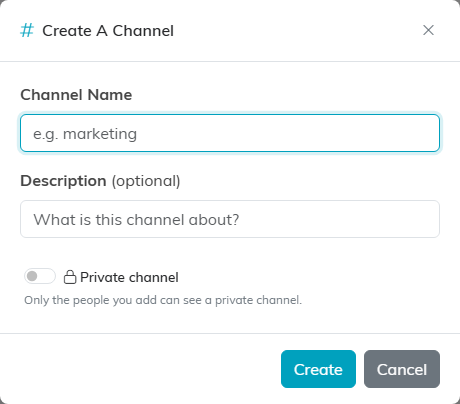
Name it, describe it if you want, and flip the switch to make it private.
Direct And Group Messages
Click any teammate under Direct Messages for a private one-to-one conversation. Use the plus sign next to Direct Messages to start a group conversation with several people at once.
Sending A Message
- Type in the box at the bottom and press Enter to send.
- Press Shift + Enter for a line break without sending.
- Click the smiley next to the paperclip to add an emoji.
- When someone else is writing to you, a line of bouncing dots appears just above the message box.

The message box. The paperclip attaches a file and the smiley adds an emoji.
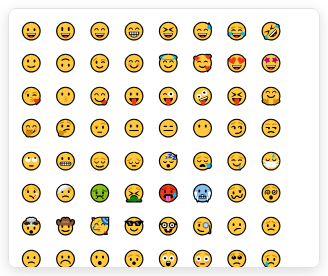
The emoji picker, opened from the smiley next to the paperclip.
Reactions
Hover over a message and click the smiley to react. There is a full set of everyday emoji plus the standard heart colors. Click an existing reaction to add or remove your own.

Hover any message and its tools appear on the right.
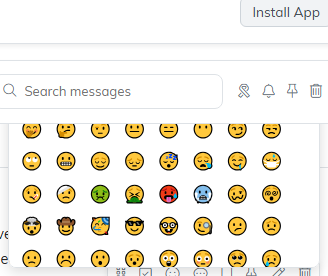
The reaction picker, with the everyday emoji and the heart colors.
Threads
Threads keep side conversations out of the main channel. Hover a message and click the reply icon, or click the replies link under it, and a thread panel opens on the right. The original message then shows a short replies link so people can find the discussion. Enter sends, Shift + Enter adds a line break, same as the main box.
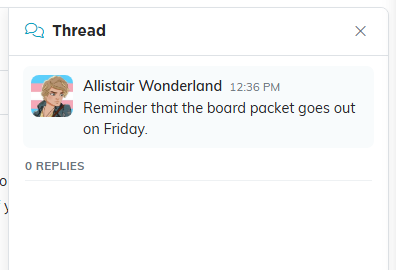
The thread panel opens on the right with the original message at the top.
Mentions
Type @ and pick a name. The mention shows in green and that person gets notified.
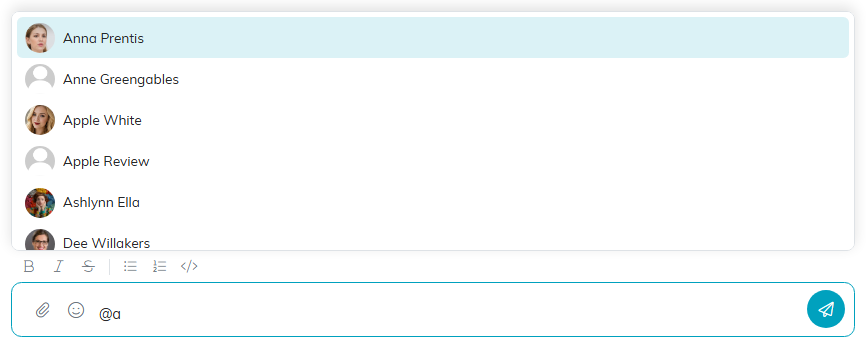
Type the at sign and the list of people appears. Pick a name from it.
Notifications
Chatter only pings you for things aimed at you: @mentions and direct messages. General channel traffic notifies nobody.
- If Chatter is open but you are on another tab or in a different channel, you get a browser pop-up.
- If you do not have Chatter or your Workspace open anywhere, you get an email instead.
- A Chatter pill sits in the top bar on every page, so you can see messages are waiting without being in Chatter. It is always there, and a count appears on it when you have unread messages. Hover it to see how many are waiting and how many of those mention you by name.
- The count is your total unread across the Chatter conversations you can open. It does not cover Agent HQ or a Workspace, which each have their own button and their own count. When a new message arrives the number pulses, and it keeps a soft ring while anything is still unread.
Two switches at the top of Chatter control this: Sound On and Pop-ups On. Pop-ups are set separately for Chatter, Agent HQ and your Workspaces, so switching them off here leaves the other two alone, and Chatter starts with them on. Turning the sound off also silences the alert Argenta raises when it is closed, though that alert still appears on screen. Both switches apply to this browser only; the phone app carries its own notification settings.
Muting A Noisy Channel
Open the channel and click the bell at the top right. While it is muted you can still read everything, you just stop getting pop-ups and emails from it. Muted channels show a bell-with-a-slash in the sidebar, and clicking the bell again unmutes. Muting affects only you.

The bell at the top right mutes the channel. Search, saved and pinned sit beside it.
Favorites
Click the star on any channel or person in the sidebar to favorite them. Starred items move to a Favorites section at the top, so the handful of conversations you actually live in stay above everything else. The sidebar sections collapse too, which helps once you have a lot of channels.
Saved Messages
Hover a message and click the bookmark icon to save it. Open Saved Messages from the sidebar to see everything you have saved across every channel, and click an item to jump to it in context. The trash icon removes it from the list without touching the original message.
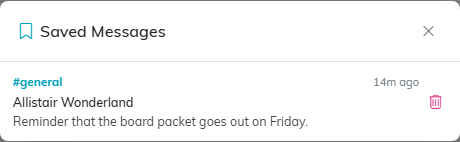
Saved Messages gathers everything you have bookmarked, with the channel it came from.
Selecting Several Messages
Hover any message and click the Select messages icon to put the channel into selection mode. A circle appears beside every message, and a bar across the top counts what you have picked.
Click another message to add it, or click a selected one to drop it. From the bar you can Delete the whole batch at once, or drag the selection onto another channel in the sidebar to move it there. The X on the left leaves selection mode without changing anything.
You can delete your own messages, and a master admin can delete anyone’s. If you select a mix, only the ones you are allowed to delete go and the rest stay where they are. View-only users cannot delete at all.
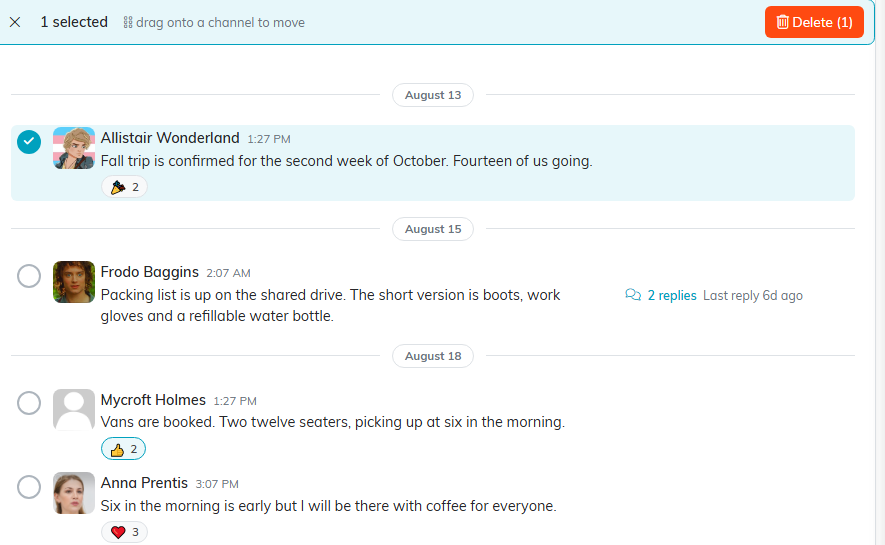
Selection mode. The bar counts what you have picked and carries the Delete button.
Search And Pins
Use the search box in the channel header to find messages across your channels, then click a result to jump to it.
To pin something important, hover the message and click the pin icon. Open the pinned panel from the channel header to see everything pinned in that channel.
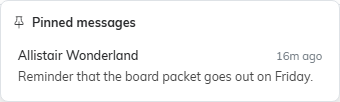
The pinned panel shows everything pinned in that channel.
Files And Images
Click the paperclip to attach a file or image. You can also drag a file straight onto the conversation. Images show inline, audio clips arrive as a player you can press play on, and other file types appear as a download link.
Voice Messages
A voice message arrives as a small player inside the conversation. Press play to listen to it.
If you move to another channel or conversation while a clip is still playing, it keeps playing. A small bar appears at the top of the screen showing what is playing, with a pause button, a stop button, and how far through the clip you are. Pressing play on the original message again hands playback back to it and the bar goes away.
Your Profile
Open the menu under your name at the top of the sidebar and choose Update My Profile. From there you can:
- Upload or replace your photo.
- Set a Chatter Display Name to show instead of your full name.
- Add a Title, a short line about who you are.
Your full name comes from your Argenta record. Clicking anyone's avatar or name opens their profile card, with a Message button to start a direct message.
Status And Presence
A colored dot shows whether someone is online (green), away (amber), or offline (gray). From the menu under your name you can set yourself Active or Away, pick a status emoji for what you are doing (coffee break, lunch, working from home, heads down, in meetings, on a call, commuting, traveling, on vacation, out sick, and more), and add a short status message.
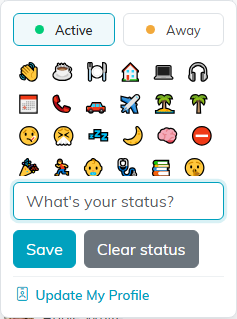
The menu under your name holds your status, your emoji and Update My Profile.
Ask AVA In A Channel
Type @ava in any channel to ask the AI assistant a question inside the conversation. The answer posts back into the channel, so the whole team sees it rather than one person having to relay it.
You can also message AVA directly. Open a direct message with her and just ask, no @ava needed, and she answers in that conversation.
Install The App
Click Install App and pick the phone you have.
- Android: takes you to Argenta on Google Play.
- iPhone or iPad: walks you through adding Argenta to your Home Screen from Safari. Apple only allows that from Safari, not Chrome. The App Store version is still on its way.
- On a computer: the link at the bottom of that window installs Argenta as a desktop app.
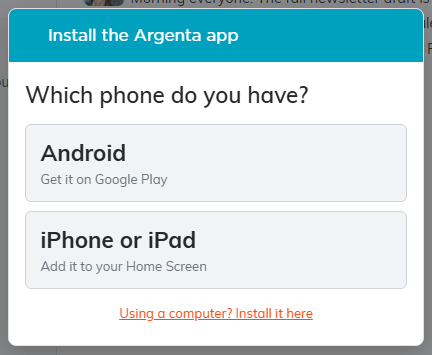
Install App asks which phone you have and walks you through it.
View-Only Users
A view-only user can read every conversation they have access to but cannot post, react, or change anything. Instead of the message box they see a view-only notice.
Who Can Do What
Master admins can delete any message, delete any channel, and add or remove members on any private or group channel.
Everyone else can create channels, post, react, pin, save, edit and delete their own messages, and manage the members of channels they created.
