Knowledge Base Article
Add Member Payments
Membership Payments track the dues and other payments your members make. Argenta records each one as a payment you can post to your general journal, refund, and receipt.
Add a membership payment
- Go to Membership > Membership Payments. This is the full list of your membership payments.
- Click Add New. Argenta creates the payment and opens the payment workspace on the Payment Details page.
- Fill in the details below and save.
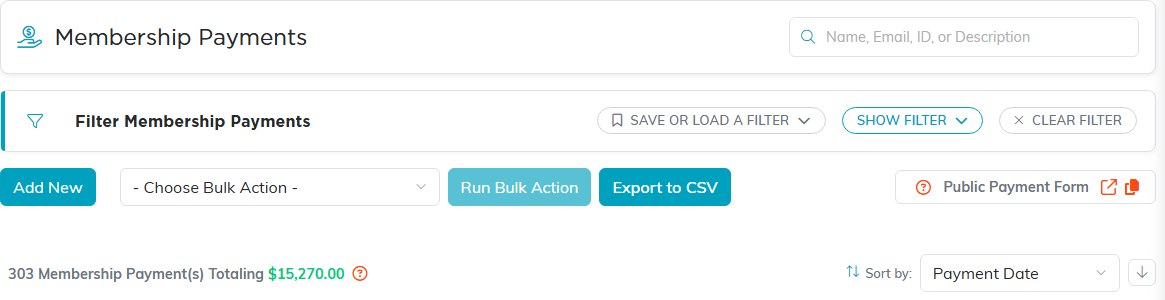
The list totals every membership payment it is showing you.
Payment Details fields
- Record Level Permissions: the Set As View Only and Lock This Record switches.
- Payment Amount (required).
- Paid by Constituent (required): the member making the payment. Search by name; you can open their record or add a new constituent right from the field.
- Add Payment to the General Journal: turn this on to post the payment as a deposit, then choose the Fund, the Deposit/Bank Account (use *Undeposited Funds if you plan to group checks into one deposit later), and the Account from your chart of accounts.
- Payment Date (required, defaults to today).
- Receipt Was Given: a switch to note a receipt was handed over. Use the Send Receipt button to email the member a receipt, or Print Receipt for a PDF.
- Payment Point of Entry, Payment Type, and Payment Category: pick from the drop-downs (add a new category with the orange add icon).
- Check/PO/Reference Number for your records.
- Chapter, Division, Department (plus District, Precinct for political teams).
- Recurring: turn on Is Recurring to set a Recurrence Frequency (Weekly, Bi-Weekly, Monthly, or Annually). Turn on Auto Input Recurring Payments to have Argenta add each future payment automatically; review them under Membership > Recurring Membership Payments.
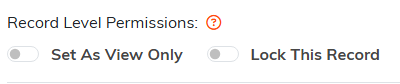
The two permission switches on the payment record.
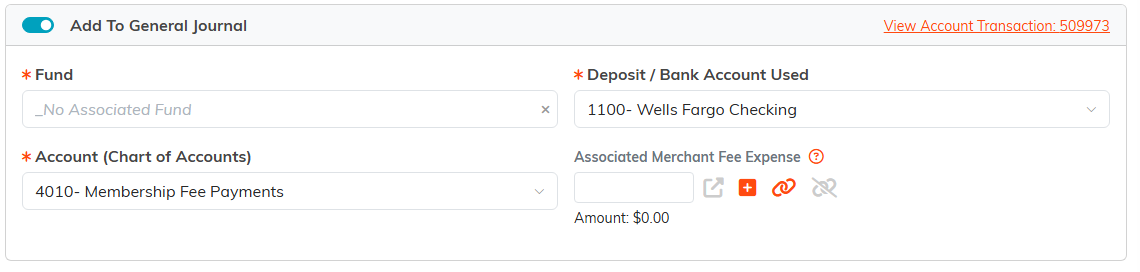
Turn the switch on and the three required accounting fields appear.

Payment Date, Payment Amount, Paid by Constituent, and Payment Name are the required ones.

Send Receipt emails the member. Print Receipt gives you a PDF.

The orange add icon beside Payment Category adds a new one on the spot.

Use these when you report on payments by part of your organization.
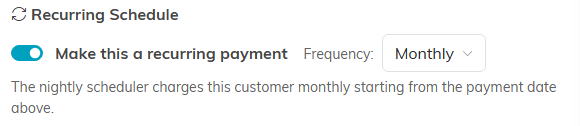
Set the frequency and Argenta charges from the payment date above.
If the payment came through Stripe, any related merchant fee shows here and the related invoice, if there is one, links out. Save with Save All & Continue or Save All & Exit.

Copy and Add New saves you retyping the next payment.
The rest of the workspace
The payment workspace has these tabs beyond Payment Details:

Six tabs in all, with Payment Details open.
- Connections: link the payment to related records.
- Refunds: see any refunds on this payment, or click Issue A Refund to record one (partial or full, with a category, date, amount, and method).
- Payment Files and Payment Notes: attach files (Add Related Files) and notes (Add A Note).
- Record Permissions: grant specific users view-only or locked-record access.
