Knowledge Base Article
How to Track Membership Renewals
Renewals keep your memberships active and your records accurate. Argenta tracks the key dates on each member record and lets you filter the member list to find who is coming due.
The renewal dates on a member record
Open a member and go to Member Details. These date fields drive the renewal process:
- Membership Term Start Date: when the current term began.
- Membership Term End Date: when the current term expires.
- Renewal Date: the date the member is set to renew.
- Active Date: when they became an active member.
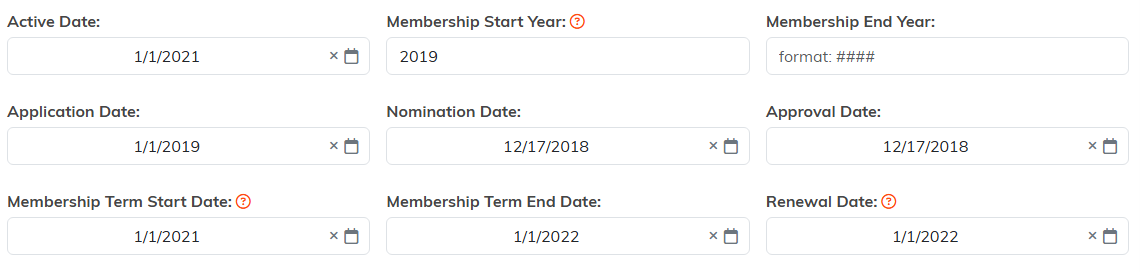
Term Start, Term End, and Renewal Date are the three that drive renewals.
Fill these in and save with Save All Changes & Continue or Save All Changes & Exit. These dates are what let you pull upcoming renewals from the member list.
Find members who are due to renew
The quickest way is the Membership Expirations Report in your Reports area. It lists members whose membership term ends within a date range you choose, grouped by how urgent the expiration is, and you can filter by membership level and by who has an email on file. Run it, then export the results for your outreach.
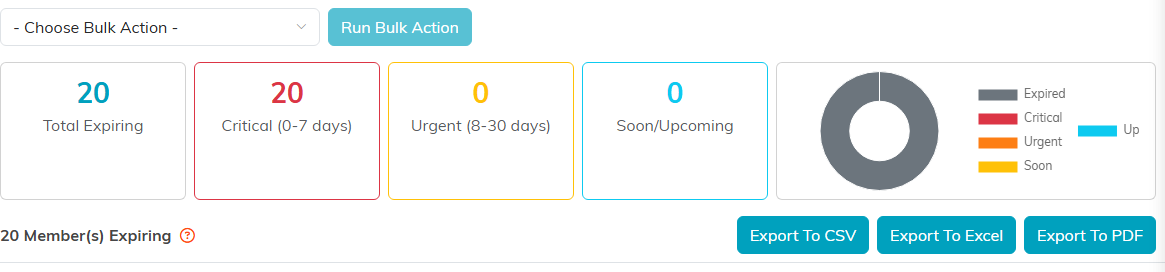
The report groups members by how close the expiry is, then exports three ways.
You can also work straight from the member list:
- Go to Membership > Members.
- Open the filter panel and set a Term End Range or a Renewal Date Range (for example, the next 30 or 60 days).
- Click Apply Filter. You can also sort the list by Renewal Date.
- Use Export to CSV to pull the list, or select the members and use Bulk Actions to build a Mail Room list for a renewal email.

The green chips fill common ranges for you.
Want the same view next month? Use Save or Load a Filter so your renewal filter is one click away.
Record a renewal
- When the renewal payment comes in, record it on the member's Payments page.
- On Member Details, update the Membership Term Start Date and Membership Term End Date for the new period, and set the next Renewal Date.
- Make sure Active Status is set to Active, then save.

Active Status is the first field on Member Details.
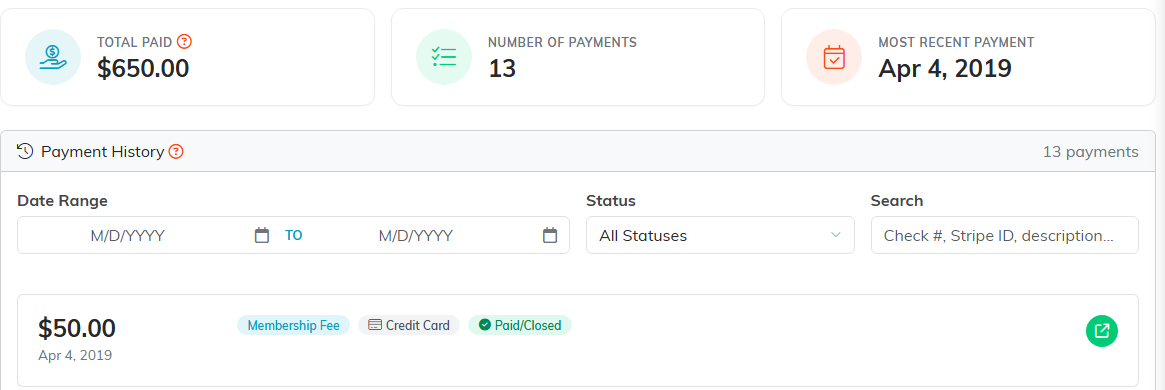
Each renewal payment lands here, with the running total at the top.
When a member does not renew
If a member lapses, keep the record so you can re-engage them later:
- On Member Details, set Active Status to Inactive.
- Enter the Inactive Date and choose an Inactive Reason, then save.
- You can review the change any time on the member's Status Log.
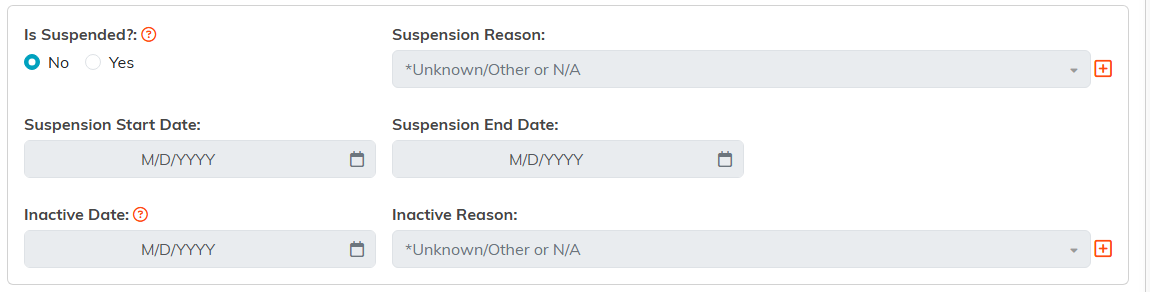
Inactive Date and Inactive Reason sit at the bottom of Member Details.
