Knowledge Base Article
Add Members
A member is any constituent (individual, organization, or household) who belongs to your organization through a membership. You first add the person as a constituent, then designate them as a member.
Add a member
- Go to Constituents (CRM) > Members or Membership > Members and click Add New.
- On the Designate A Constituent As A Member screen, start typing to find the constituent. If they are not in Argenta yet, click the add icon to create them first (see Add Constituent - An Individual).
- Click Add Member & Enter Details. This creates the member and opens the Member Workspace on the Member Details page.
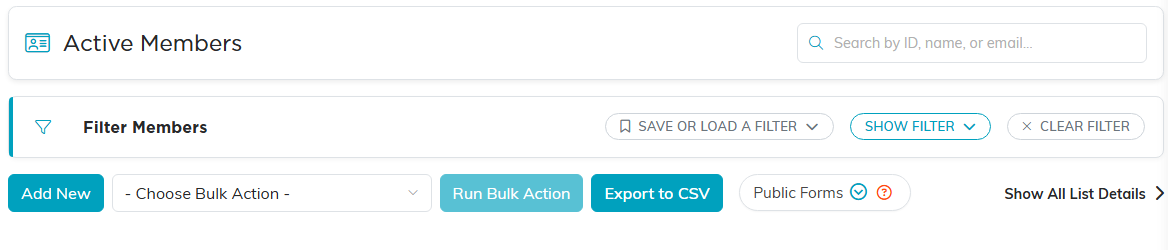
Add New sits at the top left of the Members list.
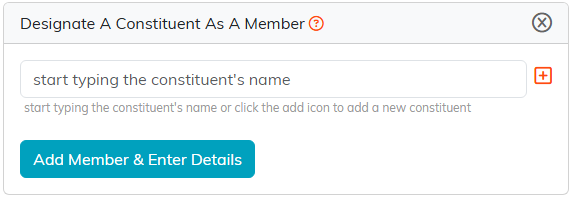
Start typing a name, or use the orange add icon to create the constituent first.
Fill in Member Details
Member Details is where you record everything about the membership. The key fields:
- Record Level Permissions: the Set As View Only and Lock This Record switches control who can see or edit this record. Use the Record Permissions tab to grant specific users access.
- Active Status: In Process, Active, or Inactive.
- Membership Status Code, Member Type, Member Category, and Membership Level: pick from the drop-downs, or add a new option with the orange add icon beside the field.
- Ambassador (Referred By): the constituent who referred this member.
- Membership dates: Active Date, Membership Start Year and End Year (4-digit), Application Date, Nomination Date, Approval Date, and the Membership Term Start Date, Term End Date, and Renewal Date that drive renewal tracking.
- Organization and assignment: Chapter, Division, Department (plus District and Precinct for political teams), Assigned To (Team Member), Acquisition Source, Associated Campaign, Membership Number, and Preferred Payment Method.
- Suspension: set Is Suspended? to Yes to record a Suspension Reason, Suspension Start Date, and Suspension End Date.
- Inactive: when Active Status is Inactive, enter the Inactive Date and Inactive Reason.
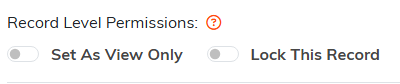
Both switches sit at the very top of Member Details.

Active Status, Membership Status Code, and the Ambassador who referred the member.

The orange add icon beside a drop-down adds a new option without leaving the page.
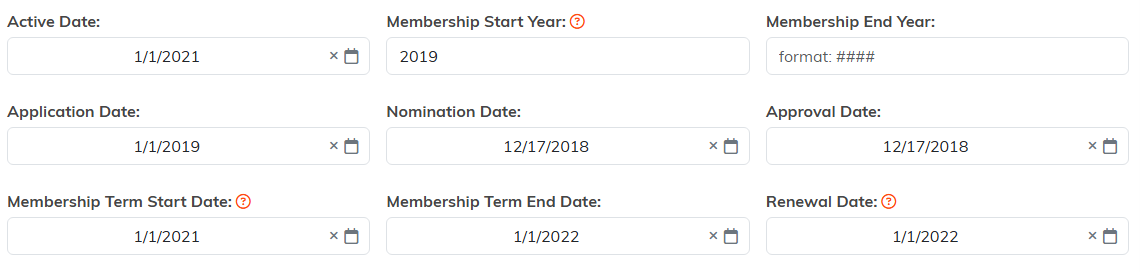
Term Start, Term End, and Renewal Date are the three that drive renewal tracking.
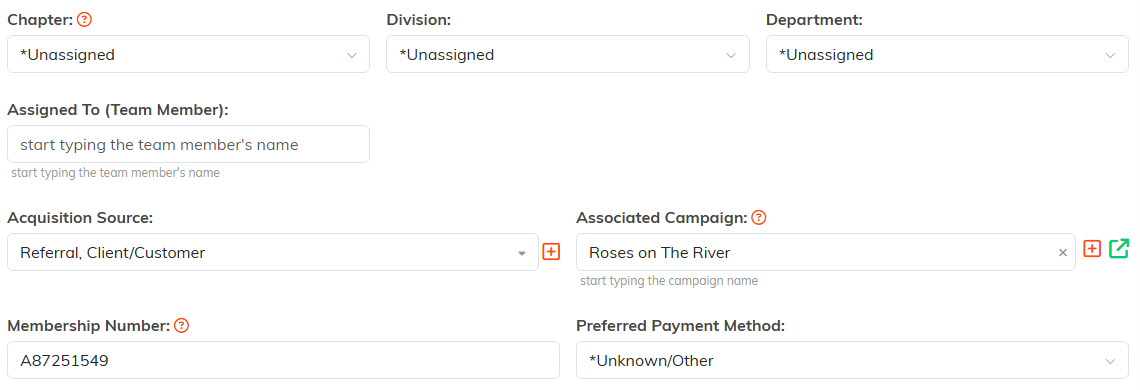
Where the member sits in your organization, and who owns the relationship.
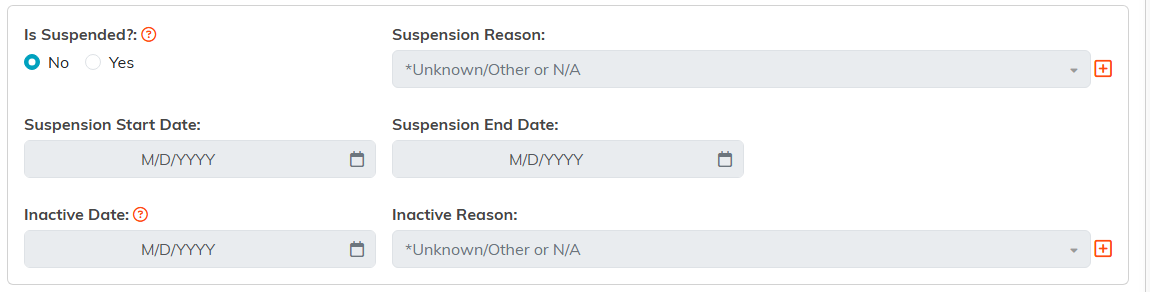
Set Is Suspended to Yes and the greyed-out fields below it open up.
Save with Save All Changes & Continue or Save All Changes & Exit.

The buttons at the foot of the form.
The rest of the Member Workspace
Beyond Member Details, the workspace has these sections:

Click any tab to move to that part of the member record.
- Groups: the member groups this member belongs to (see Add Member Groups).
- Skills & Experience and Training: skills you assign and trainings the member has completed.
- Payments: the member's dues and other payments (see Add Member Payments).
- Programs: mission-trip programs the member is part of.
- Status Log: the history of status and suspension changes (see the Membership Status Log).
- Follow-Up, Contact Log, Notifications, and Email Log: reminders, logged contacts, notification settings, and emails sent through Argenta.
- Member Files and Member Notes: attachments and notes.
- Record Permissions: grant specific users view-only or locked-record access.
Teams that run the mission-projects module also see a Mission Projects section. Member visits are recorded separately under Membership > Member Visits, not on the member record (see How to Record Member Visits).
